If you run Windows Server 2008 R2 or Windows 7 as a guest VM on vSphere, you may be aware that it was advised in VMware KB Article 1011709 that the SVGA driver should not be installed during VMware Tools installation. If I recall correctly, this was due to a stability issue which was seen in specific, but not all, scenarios:
If you plan to use Windows 7 or Windows 2008 R2 as a guest operating system on ESX 4.0, do not use the SVGA drivers included with VMware Tools. Use the standard SVGA driver instead.
Since the SVGA driver is installed by default in a typical installation, it was necessary to perform a custom installation (or scripted perhaps) to exclude the SVGA driver for these guest OS types. Alternatively, perform a typical VMware Tools installation and remove the SVGA driver from the Device Manager afterwards. What you ended up with, of course, is a VM using the Microsoft Windows supplied SVGA driver and not the VMware Tools version shown in the first screenshot. The Microsoft Windows supplied SVGA driver worked and provided stability as well, however one side effect was that mouse movement via VMware Remote Console felt a bit sluggish.

Beginning with ESX(i) 4.0 Update 1 (released 11/19/09), VMware changed the behavior and revised the above KB article in February, letting us know that they now package a new version of the SVGA driver in VMware Tools in which the bits are populated during a typical installation but not actually enabled:
The most effective solution is to update to ESX 4.0 Update 1, which provides a new WDDM driver that is installed with VMware Tools and is fully supported. After VMware Tools upgrade you can find it in C:\Program Files\Common Files\VMware\Drivers\wddm_video.
After a typical VMware Tools installation, you’ll still see a standard SVGA driver installed. Following the KB article, head to Windows Device Manager and update the driver to the bits located in C:\Program Files\Common Files\VMware\Drivers\wddm_video:
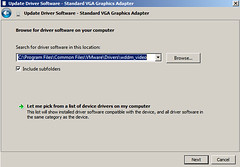
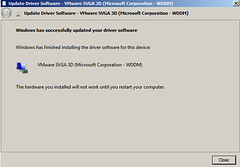
The result is the new wddm driver, which ships with the newer version of VMware Tools, is installed:
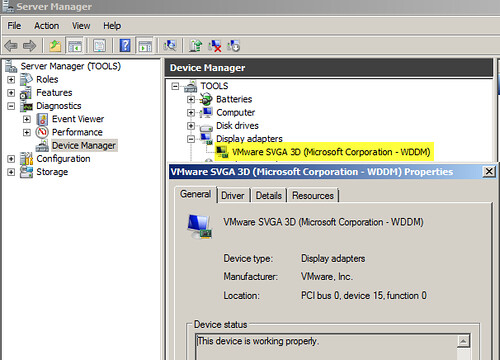
After a reboot, the crisp and precise mouse movement I’ve become accustomed to over the years with VMware has returned. The bummer here is that while the appropriate VMware SVGA drivers get installed in previous versions of Windows guest operating systems, Windows Server 2008 R2 and Windows 7 require manual installation steps, much like VMware Tools installation on Linux guest VMs. Add to this the fact that the automated installation/upgrade of VMware Tools via VMware Update Manager (VUM) does not enable the wddm driver. In short, getting the appropriate wddm driver installed for many VMs will require manual intervention or scripting. One thing you can do is to get the wddm driver installed in your Windows Server 2008 R2 and Windows 7 VM templates. This will ensure VMs deployed from the templates have the wddm driver installed and enabled.
The wddm driver install method from VMware is helpful for the short term, however, it’s not the scalable and robust long term solution. We need an automated solution from VMware to get the wddm driver installed. It needs to be integrated with VUM. I’m interested in finding out what happens with the next VMware Tools upgrade – will the wddm driver persist, or will the VMware Tools upgrade replace the wddm version with the standard version? Stay tuned.
Update 11/6/10: While working in the lab tonight, I noticed that with vSphere 4.1, the correct wddm video driver is installed as part of a standard VMware Tools installation on Windows 7 Ultimate x64 – no need to manually replace the Microsoft video driver with VMware’s wddm version as this is done automatically now.
Update 12/10/10: As a follow up to these tests, I wanted to see what happens when the wddm driver is installed under ESX(i) 4.0 Update 1 and its corresponding VMware Tools, and then the VM is moved to an ESX(i) 4.1 cluster and the VMware Tools are upgraded. Does the wddm driver remain in tact, or will the 4.1 tools upgrade somehow change the driver? During this test, I opted to use Windows 7 Ultimate 32-bit as the guest VM guinea pig. A few discoveries were made, one of which was a surprise:
1. Performing a standard installation of VMware Tools from ESXi 4.0 Update 1 on Windows 7 32-bit will automatically install the wddm driver, version 7.14.1.31 as shown below. No manual steps were required to install this driver forcing a 2nd reboot. I wasn’t counting on this. I expected the Standard VGA Graphics Adapter driver to be installed as seen previously. This is good.
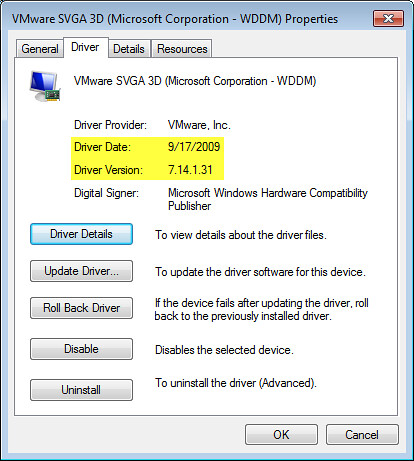
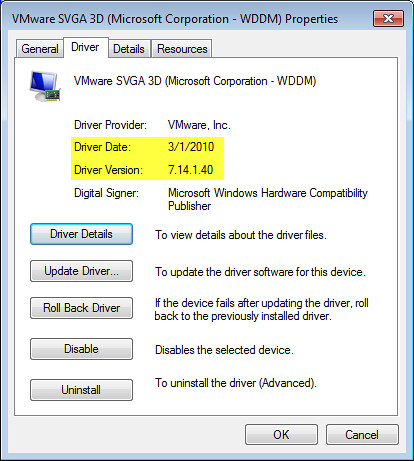
After moving the VM to a 4.1 cluster and performing the VMware Tools upgrade, the wddm driver was left in tact, however, its version was upgraded to 7.14.1.40. This is also good in that the tools ugprade doesn’t negatively impact the desired results of leveraging the wddm driver for best graphics performance.
More conclusive testing should be done with Windows 7 and Windows Server 2008 R2 64-bit to see if the results are the same. I’ll save this for a future lab maybe.













Had recently tried them on some VM’s and it works as billed. Mouse performance was about the best I’ve ever seen.
Jason,
I just realized that also some of my 2008 standard VMs (non) R2 needed this driver too…
I updated.
Thanks for pointing this out.
Vladan
After doing this, my VM console does not display video (black screen) but RDP works fine. Any thoughts?
Thanks for pointing this out, very helpful and interesting to note. It certainly gives much better experience.
I double checked and it’s not referenced int the Guest OS guide on (vmware.com/go/hcl see my custom search => http://bit.ly/cvm1Il ). I have suggested via a feedback form on the KB page.
I did two w2008 r2 servers to the new wddm driver.
One server worked great, and the other server does not display video(black screen) but RDP works fine as indicated by a previous message. I tried to revert back, but receive message that system has determined the best driver is already installed. Any thoughts?
I found these steps to revert back:
Try the SVGAII driver from VMware. It worked for me.
1) Open Device Manager from Control Panel
2) Expand Display Adapters entry
3) Right click on VMWare SVGA 3D (WDDM) and click properties
4) Click on Uninstall Button
5) Check the “Delete the driver software for this device” option
6) Click OK
7) Your screen may flicker as the driver is removed.
8) Close Device Manager and reboot.
9) Windows will default to the Standard VGA device
10) Open Device Manager, expand Display Adapters
11) Right Click Standard VGA and select Properties
12) Click on Update Driver
13) Click on Browse my Computer
14) Browse to directory C:\Program Files\Common Files\VMware\Drivers\video
15) Click Next
16) Confirm driver installation
17) Close window and reboot
http://kb.vmware.com/kb/1016770
states:
“*Unless there is an explicit requirement for enhanced graphics, the preferred driver for Windows Server 2008 R2 is the Microsoft-provided VESA driver.”
What do you think about that?
Try this if the wddm driver causes the console to black screen. The wddm driver requires 8MB of video ram to work along with HW version 7. Shut down the problem VM and make those changes to the VM settings, then reboot. The console should function now. Oh, and if the wddm driver doesn’t show up, do a reinstall of vmware tools, even if they are up to date, and make sure you select to add the svga driver
Jason,
What are your thoughts on this now that 4.1 has been released and you have had a chance to play with it?
Chad
Just tested with an ESXi 4.1 build and the VMware Tools don’t install the VMware SVGA driver on a Windows 2008 R2 Std…
Does anyone know how to handle this after Sysprep on 2008 R2? Every time I run Sysprep with the generalize + OOBE options, this problem recurs and I have to reinstall VMware Tools and fix the driver again.
Luke wrote:
“Does anyone know how to handle this after Sysprep on 2008 R2? Every time I run Sysprep with the generalize + OOBE options, this problem recurs and I have to reinstall VMware Tools and fix the driver again”
Have the same annoying issue. Have not found a fix besides re-installing VMtools etc.
By the way. I have never seen stability issues caused by the VMware WDDM driver and i care about a mouse that responds normally.
I forgot. The same problem rears it’s ugly head on Win7.
Re-installing VMtools fixes the ” funky mouse” problem.
(the WDDM driver had to be active before. Else it needs to be installed manually like the blog says).
I found the fix of slow mouse is to apply the latest VMTools again
http://packages.vmware.com/tools/esx/latest/windows/x64/index.html